
Resolute B.I.
Web
My Role
Lead Designer
UX Research
Background
Resolute Building Intelligence provides fault detection, analytics, and reporting solutions through its two applications, Synergy and Fusion. By connecting to a building’s existing BAS, Resolute BI delivers insights using rule-based analytics and reports, helping users better understand performance and identify potential issues.
However, separating the platform into two applications introduced several challenges. User management was not only split between Synergy and Fusion, but also siloed at the customer level. Each customer maintained its own set of users, with no centralized way to view or manage them across the platform. This made it difficult to locate users, understand access, and manage permissions without first knowing where a user existed.
The Goal
The goal was to create a centralized user management experience that works across the entire platform. This included giving administrators a single place to manage users while introducing a more flexible and customizable approach to roles, permissions, and access.
The Process
Investigation
To understand the problem space and define a scalable solution, the investigation was broken down into four key areas:
Audit existing permissions
Understand the system hierarchy
Define user roles
Define user-controlled settings
Audit Existing Permissions
The existing permission system was fragmented across applications and customers, making it difficult to understand who had access to what.
Permissions were tightly coupled to roles, limiting flexibility and making it difficult to support different user needs.
Key Findings
Roles were rigid and defined too much of the user experience
Permissions were not easily adjustable without changing roles
Access varied across applications, leading to inconsistency
There was no centralized way to view or manage users
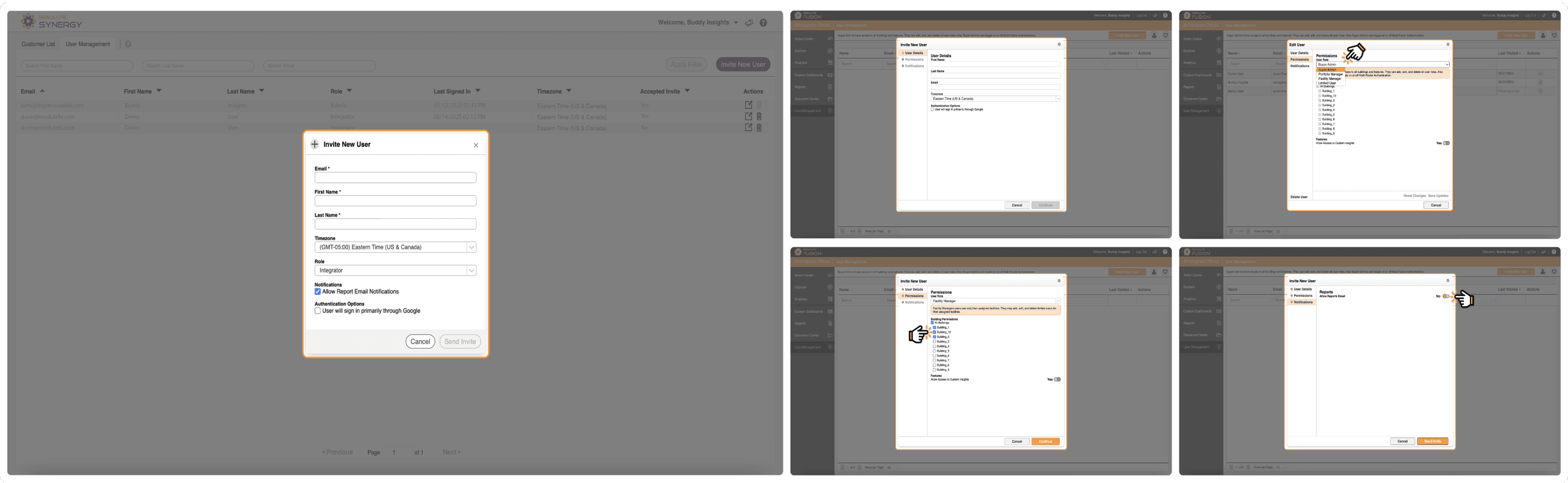
Synergy vs. Fusion invite workflows
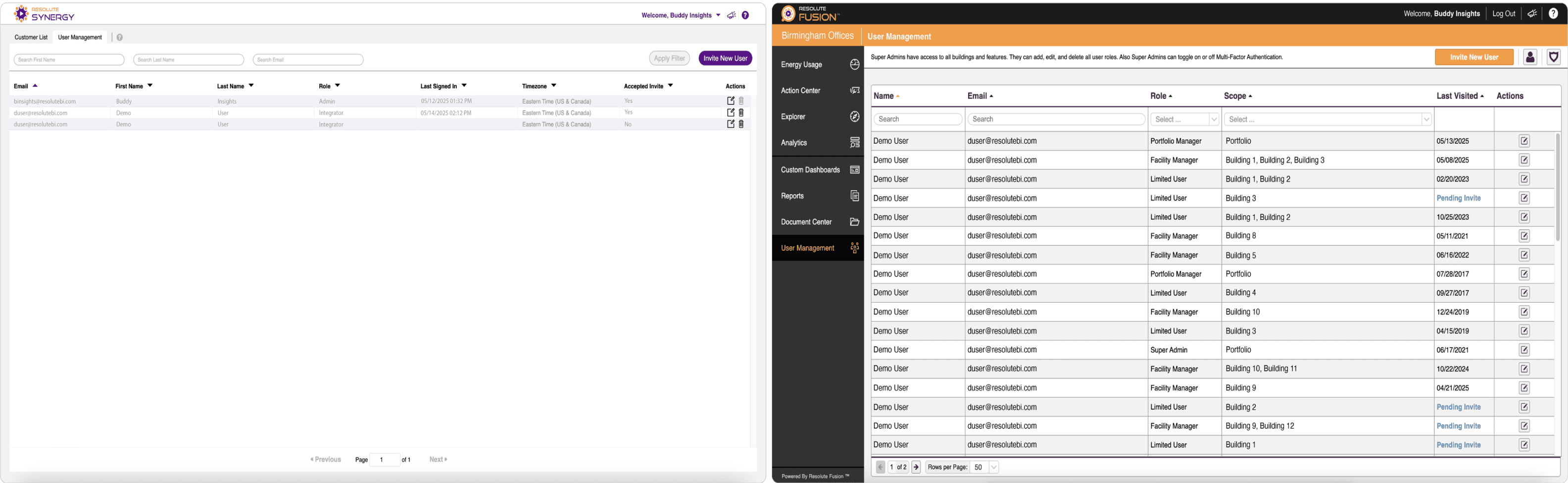
Synergy vs. Fusion user management screens
Design Implications
These findings revealed that the core issue was not just fragmentation across applications, but a lack of a scalable permission model.
This led to several key design decisions:
Introduce flexible, atomic permission controls instead of rigid roles
Separate administrative capabilities from user roles
Define a clear access hierarchy to control visibility and scope
Create a centralized user management system across the platform
Roles should act as a starting point, not a fixed definition.
Understanding the Hierarchy
While user management was the primary focus of this project, permissions could not be defined without understanding how access is structured across the platform.
In Resolute, a user’s permissions are not only determined by their role, but also by where they have access within the system.
How Hierarchy Impacts Access
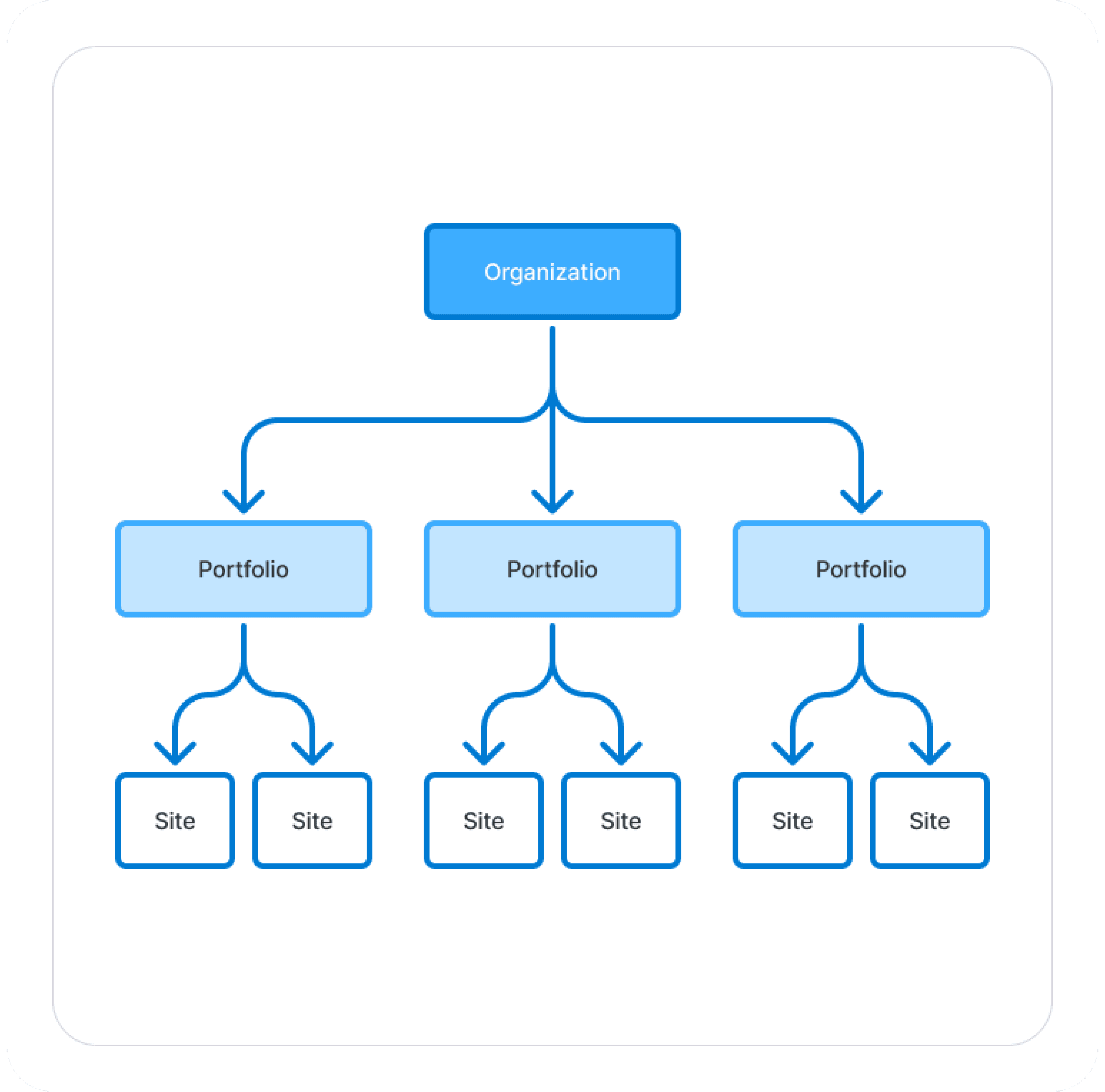
Access is assigned at different levels of the system
Access is assigned at different levels of the system:
Organization – broad access across multiple portfolios
Portfolio – primary workspace for most users
Site – location-specific access
Each level defines both:
What data a user can see
What actions they can take
Key Findings
Permissions are scoped, not global.
A user with the same role can have completely different experiences depending on their assigned access level.
For example:
A Service Engineer with Portfolio access can view and manage data across multiple buildings
The same role with Site access is limited to a single location
This made it clear that roles alone were not enough to define access.
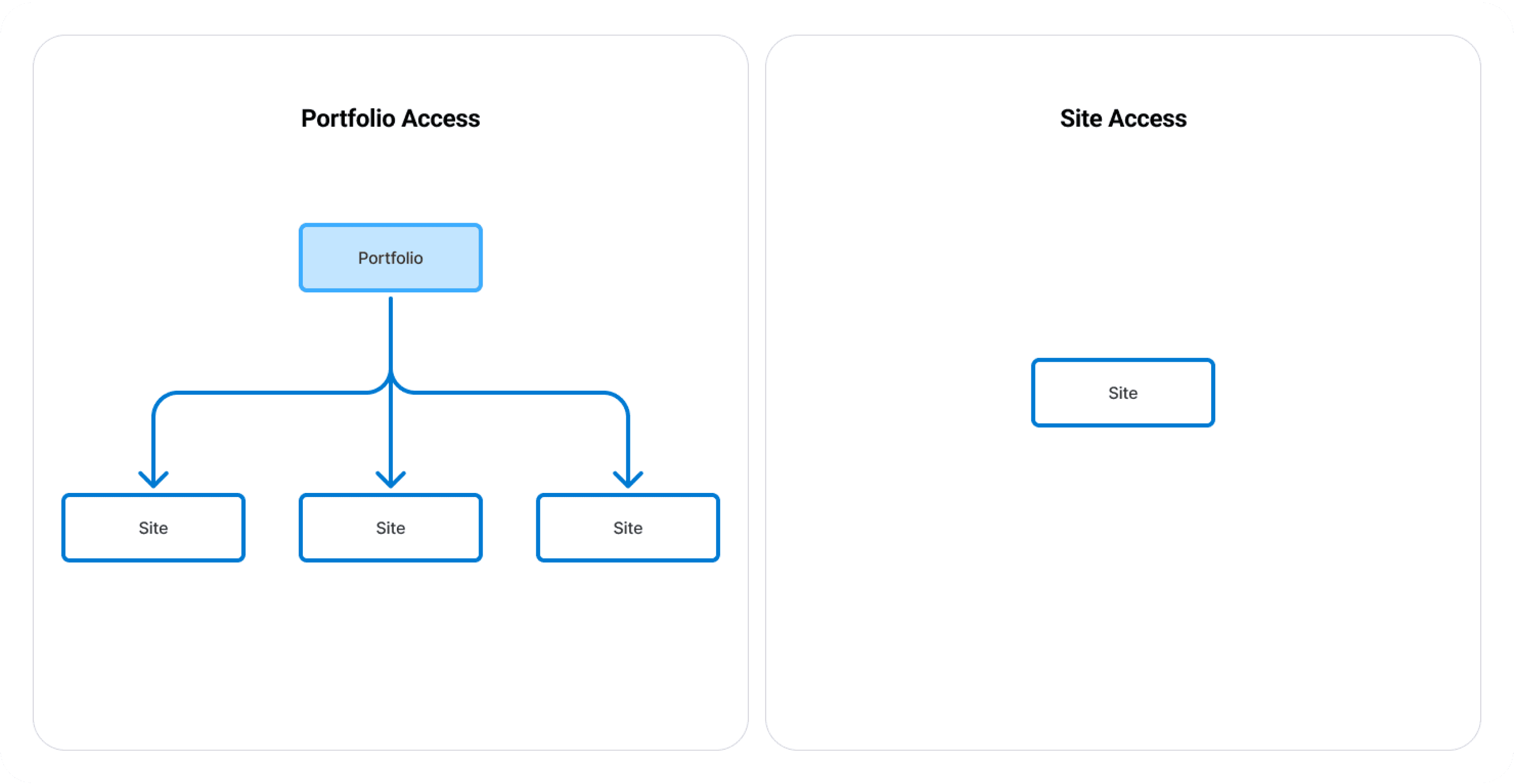
Access defines scope.
Portfolio access vs. Site access
Design Implications
This understanding directly influenced the permission model:
Introduced access scopes (Organization, Portfolio, Site)
Ensured permissions are always applied within a defined scope
Allowed users to have the same role with different levels of access
Made access more predictable and scalable across customers
Defining User Roles
User roles were redefined to better reflect real responsibilities and how users interact with the platform.
The Problem
The existing role system varied between Synergy and Fusion and lacked flexibility.
Each application defined its own set of roles
Roles had fixed permissions that could not be adjusted
Users with overlapping responsibilities often didn’t fit cleanly into a single role
For example:
Synergy used roles like Admin and Integrator
Fusion introduced additional roles such as Super Admin, Portfolio Manager, Facility Manager, and Limited User
This created inconsistencies and made it difficult to standardize access across the platform.
Key Insight
Roles should provide a starting point, not define the entire user experience.
The Approach
Roles act as templates with default permissions
Permissions can be customized based on user needs
Administrative responsibilities are separated from roles

Permission cards illustrating how roles act as a starting point (Team Member), evolve through customization (Integrator), and can be extended with administrative responsibilities.
Role Types
Integrator – configures systems and manages data
Service Engineer – identifies and diagnoses issues
Facilities Manager – manages operations
Team Member – flexible, minimal access
Executive – high-level visibility
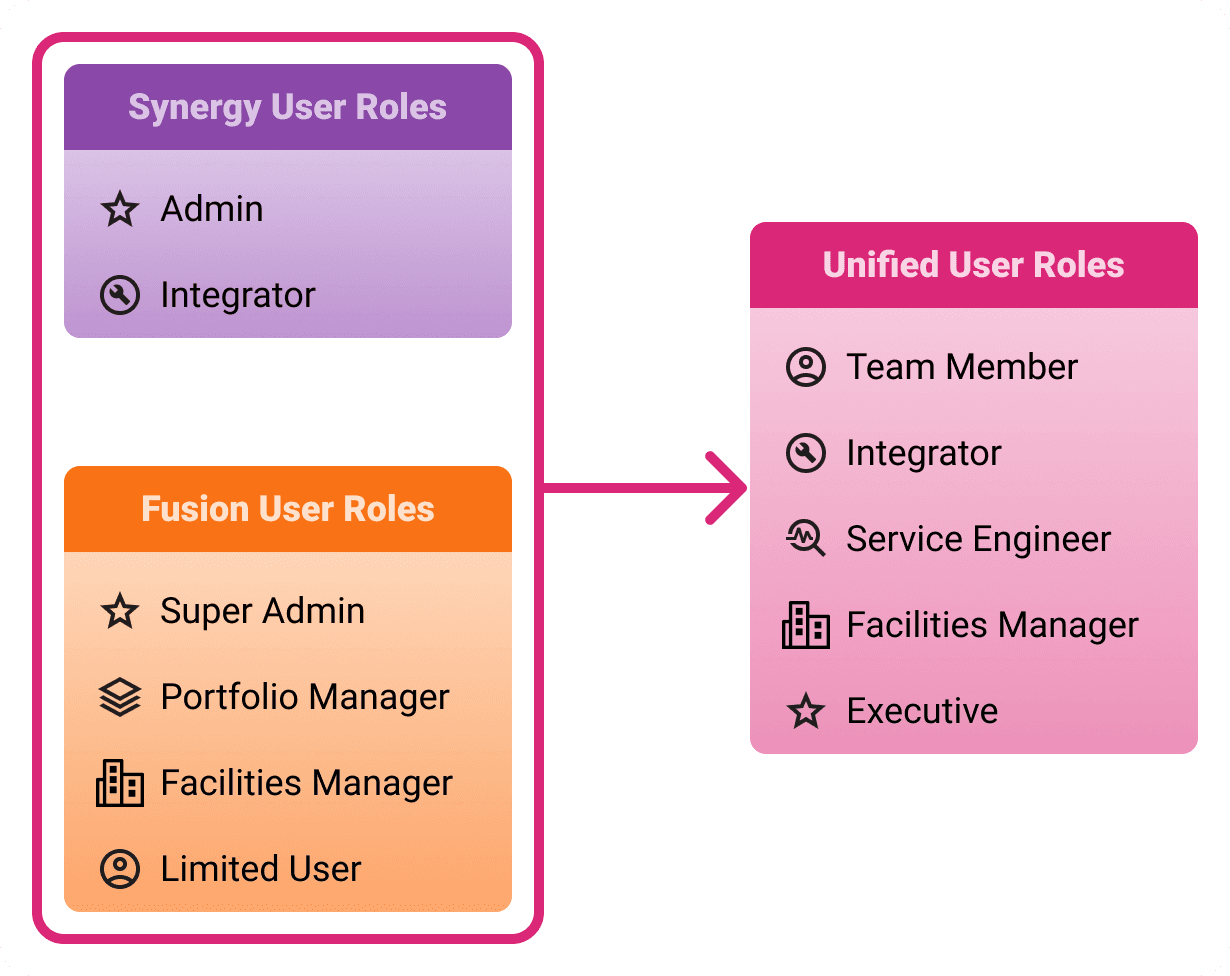
Unifying fragmented roles across Synergy and Fusion into a single, scalable system
Integrator
Description
Integrators are responsible for configuring building data, maintaining data quality, and completing system integration workflows.
Default Permissions
Rule Configuration
Custom Dashboard Configuration
Access Scope
Available at Organization and Portfolio levels only
Default Features
Overview
Custom Dashboards
Integrator & Configuration Features
Explorer
Service Engineer
Description
Focused on identifying, diagnosing, and providing solutions for issues.
Default Permissions
Rule Configuration
Custom Dashboard Configuration
Access Scope
Available at any level
Default Features
Overview
Custom Dashboards
Diagnostics & Reporting Features
Explorer
Feature Groups (Used in Role Definitions)
Dashboard & Insights
Overview
Custom Dashboards
Diagnostics & Reporting
Action Center
Analytics
Document Center
Energy Usage
Explorer
Reports
Integration & Configuration
Computed Points
Connectors
Equipment Tagging
Job Statuses
Plant Relationships
Points Audit
Point Mapping
Point Tagging
Reports
Rules
Site Editor
User Audit
Feature availability is determined by access scope. Integration and configuration features are only available at the Organization and Portfolio levels, where system setup and data structuring occur.
Design Implications
This new approach to roles enabled:
Greater flexibility without increasing complexity
Consistent behavior across the platform
Easier onboarding with sensible defaults
The ability to support edge cases without creating new roles
By decoupling roles from strict permissions, the system became more adaptable to real-world use cases.
Define User-Controlled Settings
With roles, permissions, and access scopes defined, the next step was to establish what users should be able to manage on their own.
The goal was to give users control over their personal experience without exposing system-level configuration that should remain restricted to administrators.
The Problem
In the existing experience, user-related actions were fragmented and inconsistent.
Profile details, notifications, and settings were not centralized
Some actions required administrative intervention that could reasonably be self-managed
There was no clear distinction between what a user could control and what required elevated permissions
Additionally, users often had multiple profiles across applications.
For example, Synergy users maintained a separate profile in Fusion. When transitioning between applications, their role would also change (e.g., Admin or Integrator in Synergy becoming Super Admin in Fusion), creating confusion around identity, permissions, and responsibilities.
Key Findings
User control should be clearly separated from system controls
Users should be able to manage their own preferences and personal settings, while administrative actions remain restricted based on permissions and access scope.
The Approach
Centralized User Profile
All user-specific settings were consolidated into a single, accessible profile experience.
From the profile, users can:
View and update personal information (name, email, timezone)
Manage notification preferences
View their assigned access (Organization, Portfolio, Site)
Access details are read-only, providing visibility into what a user can access without allowing modifications.
This created a single, predictable location for user-specific controls while maintaining clear boundaries between user and administrative responsibilities.
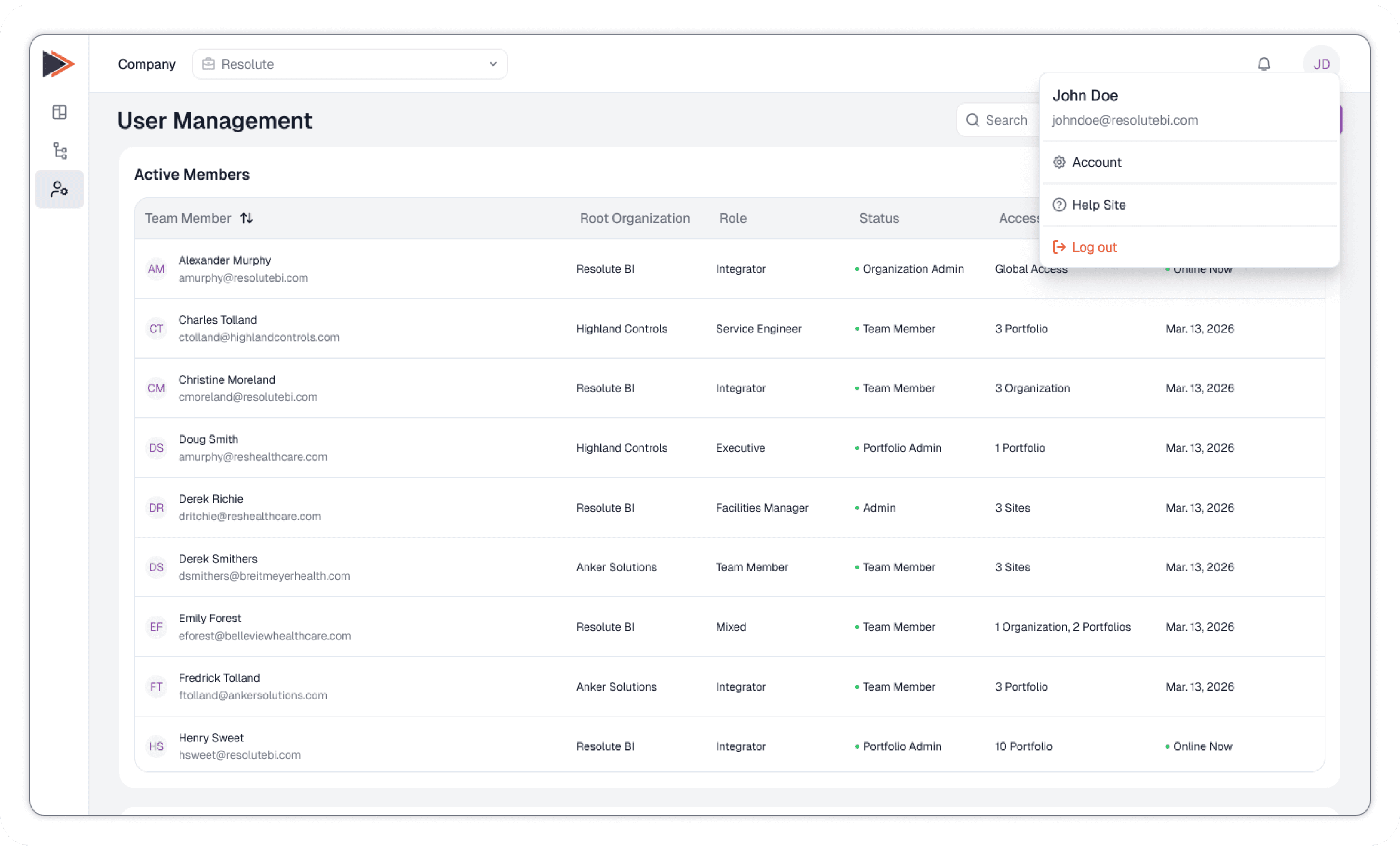
Access the user profile through the avatar menu.
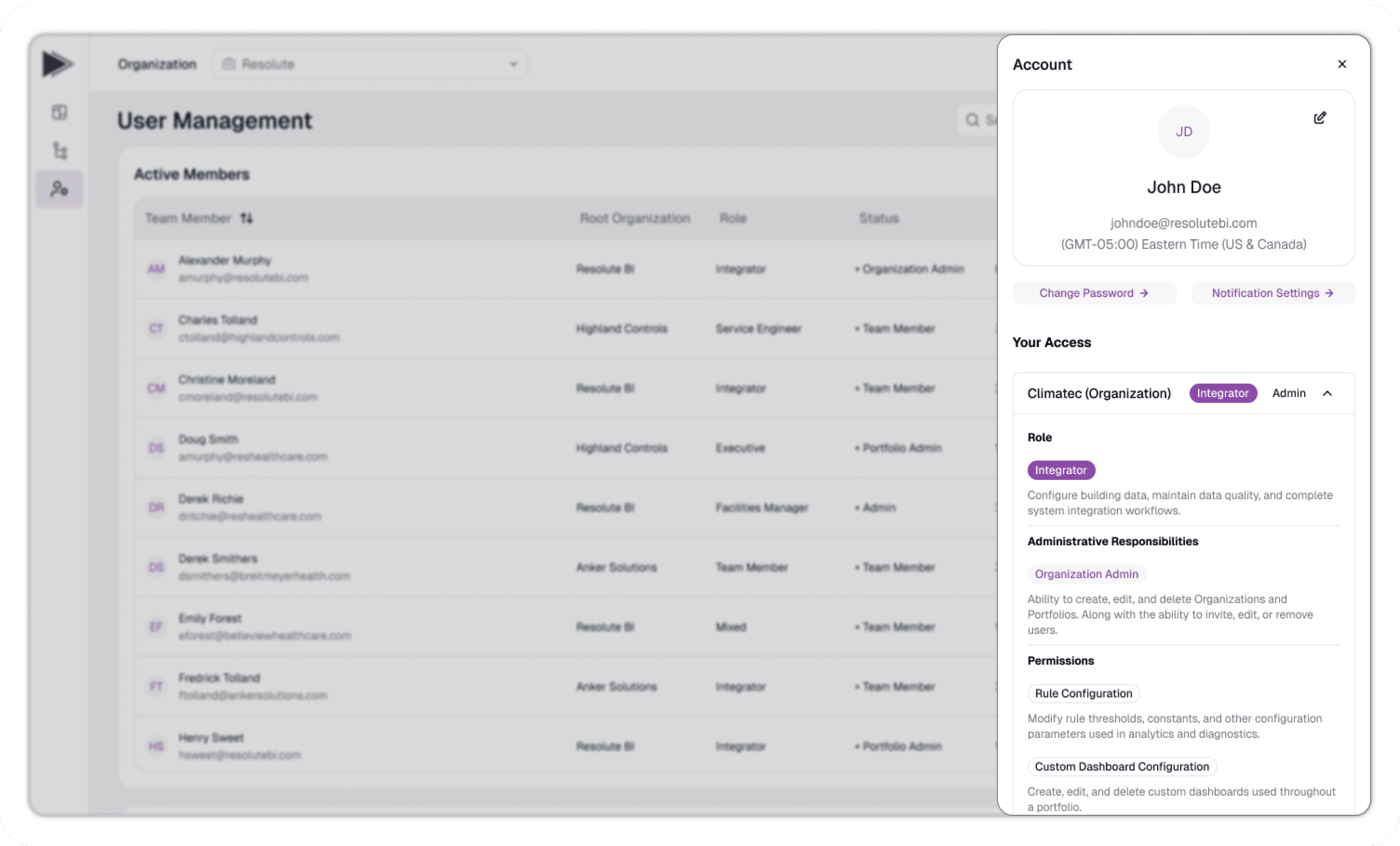
The profile is presented as a contextual drawer, allowing users to view and manage their information without leaving their workflow.
Clear Boundaries Between User and Admin Actions
Actions were divided into two categories:
User-controlled
Profile information
Notification preferences
Password management
Admin-controlled
Roles and permissions
Access scope (Organization, Portfolio, Site)
Feature availability
This ensures users can manage their experience without impacting system configuration.
Contextual Editing Experience
Instead of navigating away from the user management table, profile and settings are handled through a side drawer.
This allows users to:
View and edit details without losing context
Quickly switch between different settings (profile, notifications, password)
Maintain continuity within the workflow
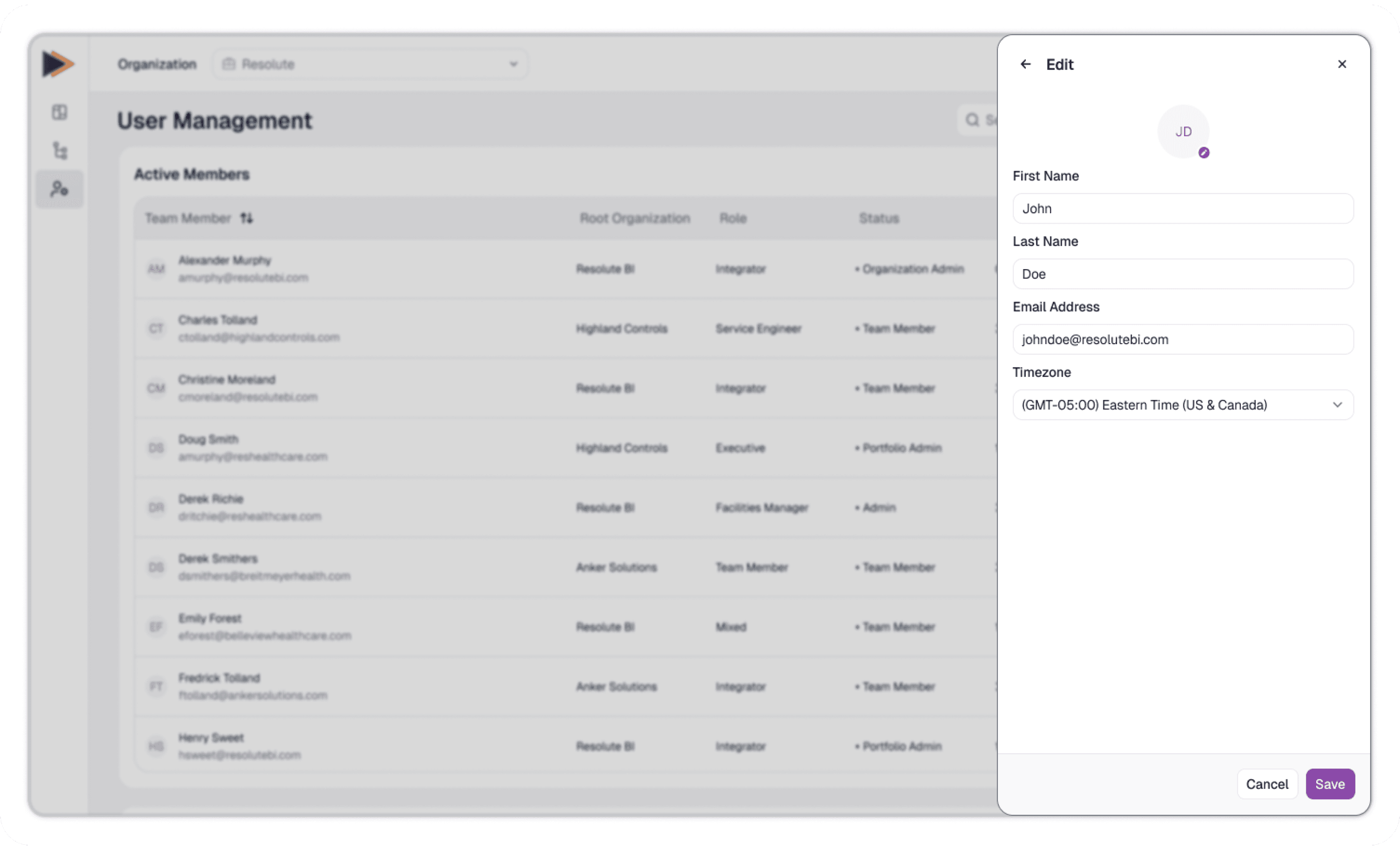
The drawer adapts based on the selected task. This example shows editing user details.
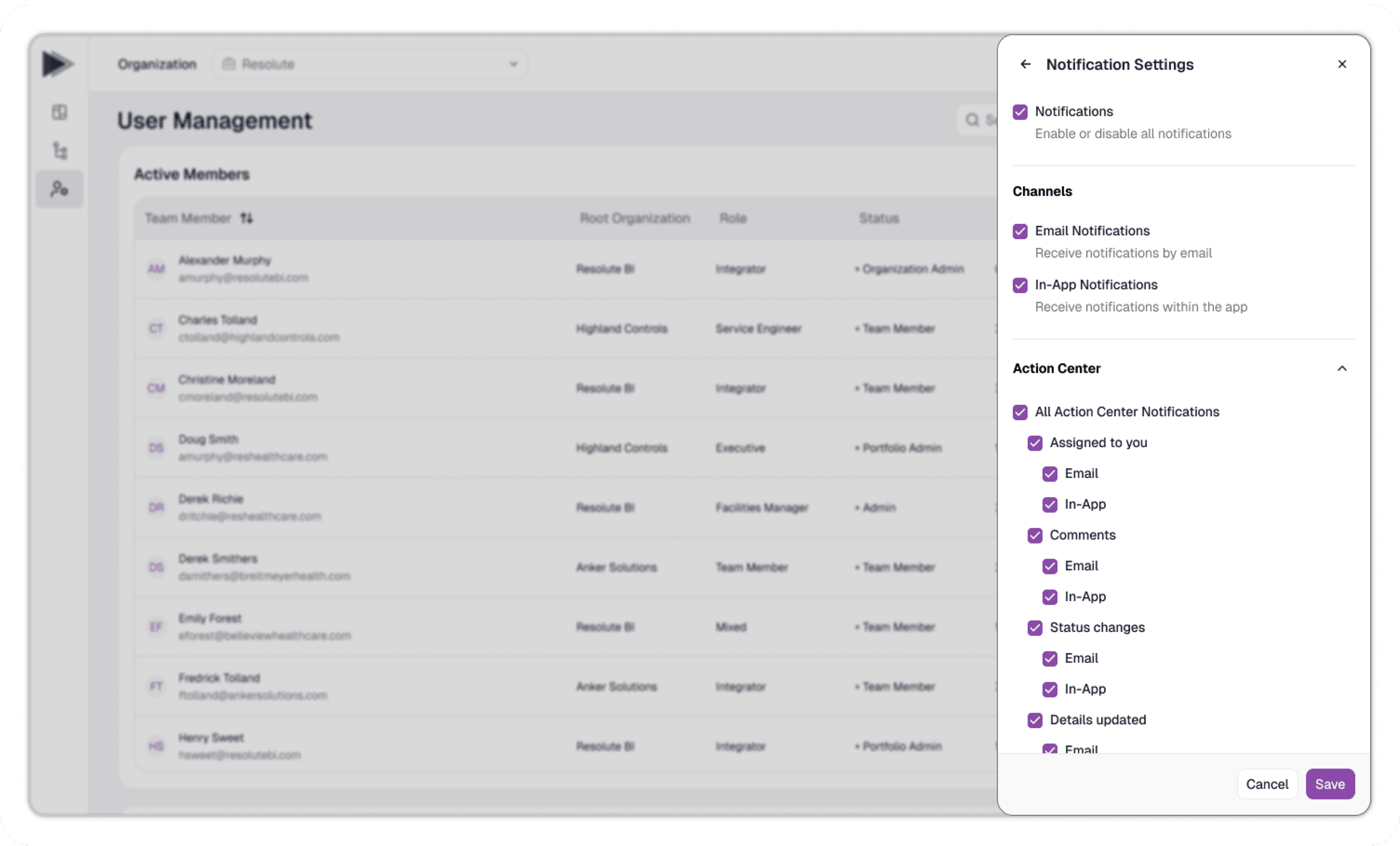
Example of managing notification preferences.
Design Implications
This approach resulted in:
Reduced reliance on administrators for simple updates
A clearer mental model of control and responsibility
A more streamlined and accessible user experience
Better alignment between user expectations and system behavior
By defining clear boundaries between user and system control, the experience became more intuitive and efficient.
The Design
User Management Overview
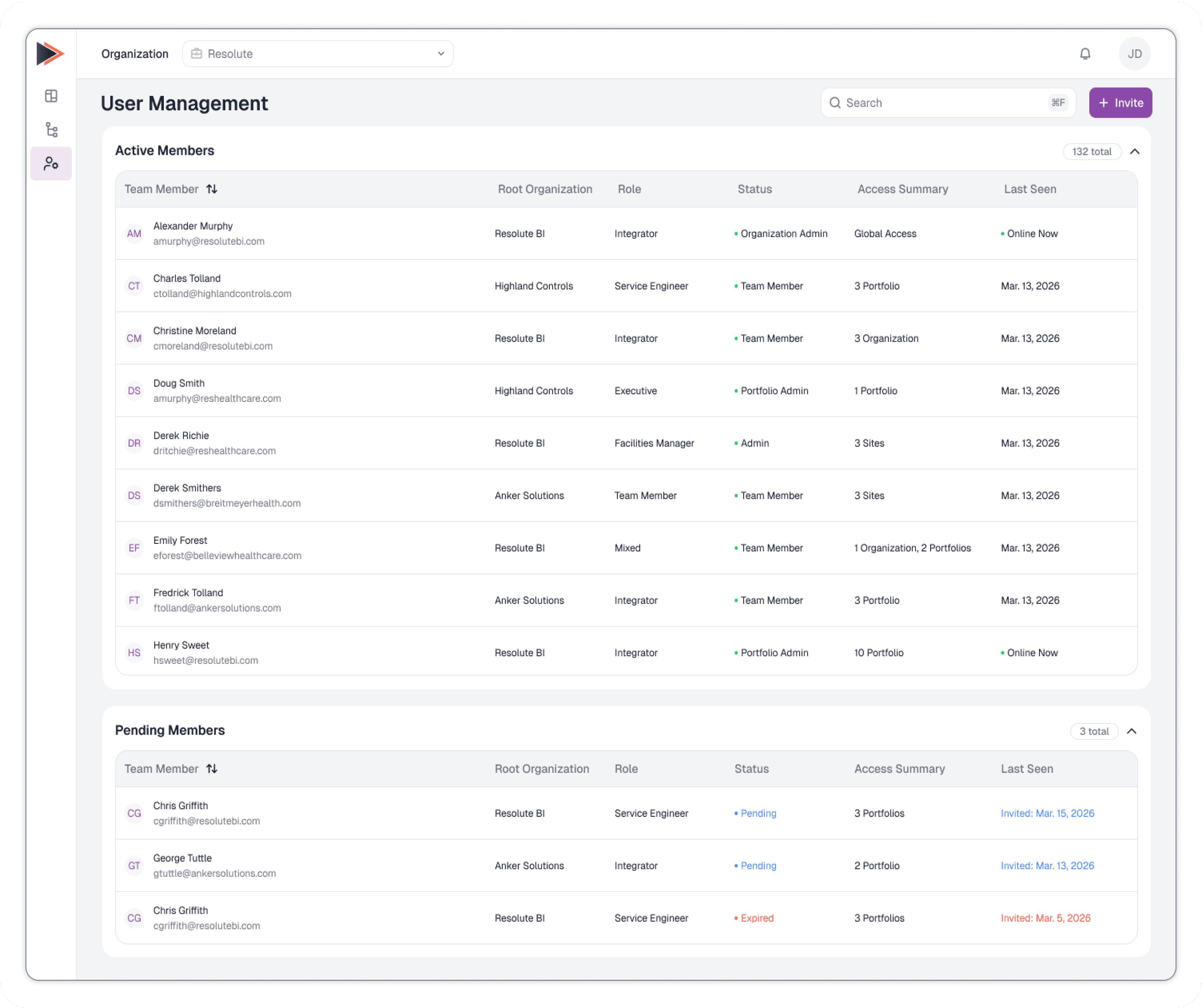
User Management Overview
The user management experience is centered around a single, unified dashboard that provides visibility into all users within the selected scope.
Users are organized into two groups:
Active Members – users with current access
Pending Members – users who have been invited but have not yet completed onboarding or whose invites have expired
Both groups can be expanded or collapsed, allowing administrators to focus on relevant users while maintaining a clear overview.
Key Features
Centralized Visibility
All users are managed from a single interface, eliminating the need to navigate across multiple systems.
Access Summary
Each user includes a summarized view of their access (e.g., number of portfolios or sites), making it easy to understand scope at a glance.
Status Indicators
Clear status labels (Active, Pending, Expired) provide immediate feedback
Scalable Interaction
Infinite scrolling supports large user sets without sacrificing performance.
Unified Search
Search spans both Active and Pending users.
Design Considerations
Splitting users into Active and Pending groups helped separate day-to-day management from onboarding workflows, reducing visual clutter and improving scan-ability.
At the same time, keeping both groups within a single dashboard maintains a centralized experience, reinforcing the goal of unified user management across the platform.
Inviting Users
The invite process was redesigned to guide administrators through assigning access, roles, and permissions in a structured flow.
Each step builds on the previous one, ensuring users are configured correctly and reducing the likelihood of errors.
The Flow
The invite process follows a step-by-step structure:
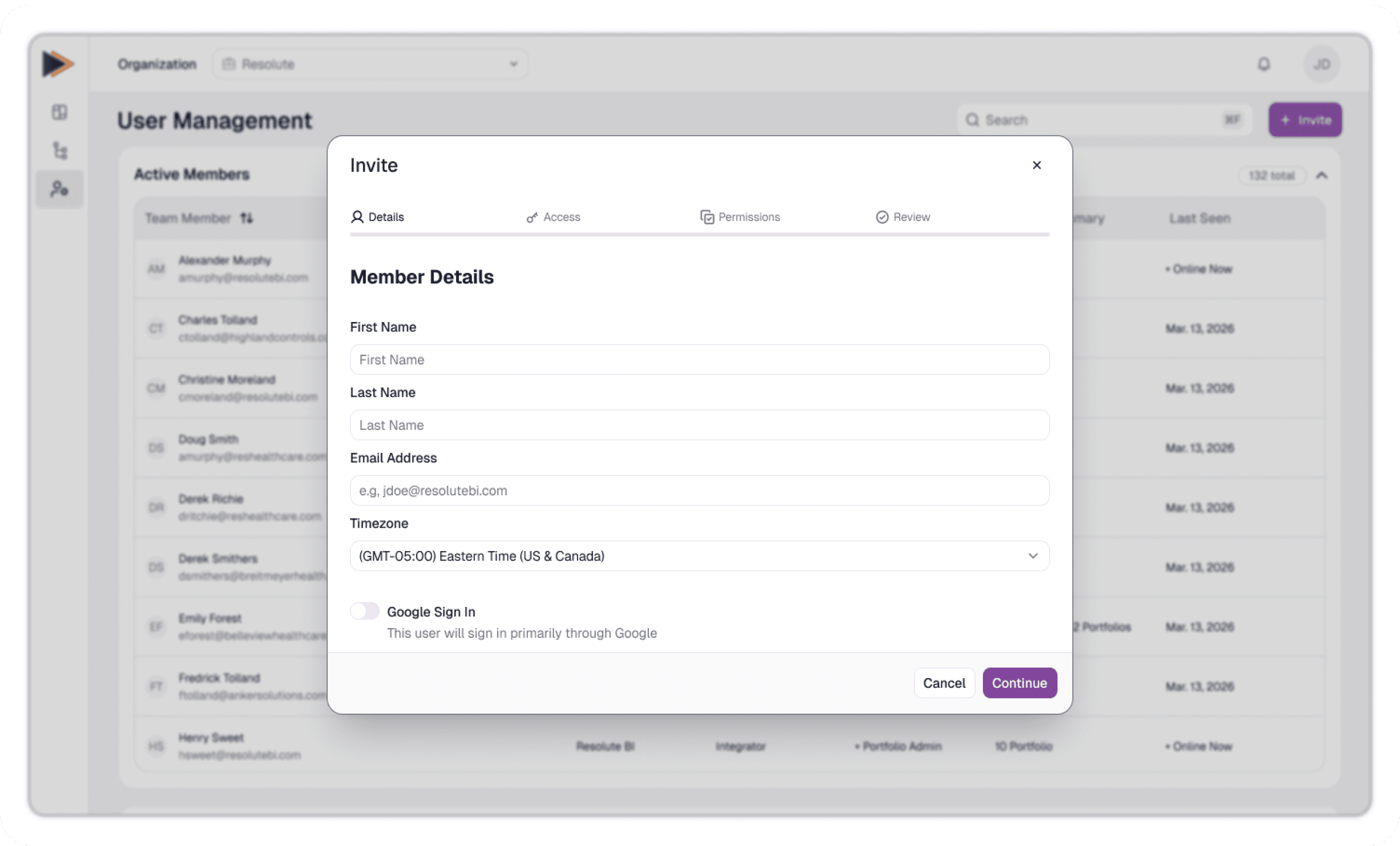
Member Details
Enter basic user information such as name and email
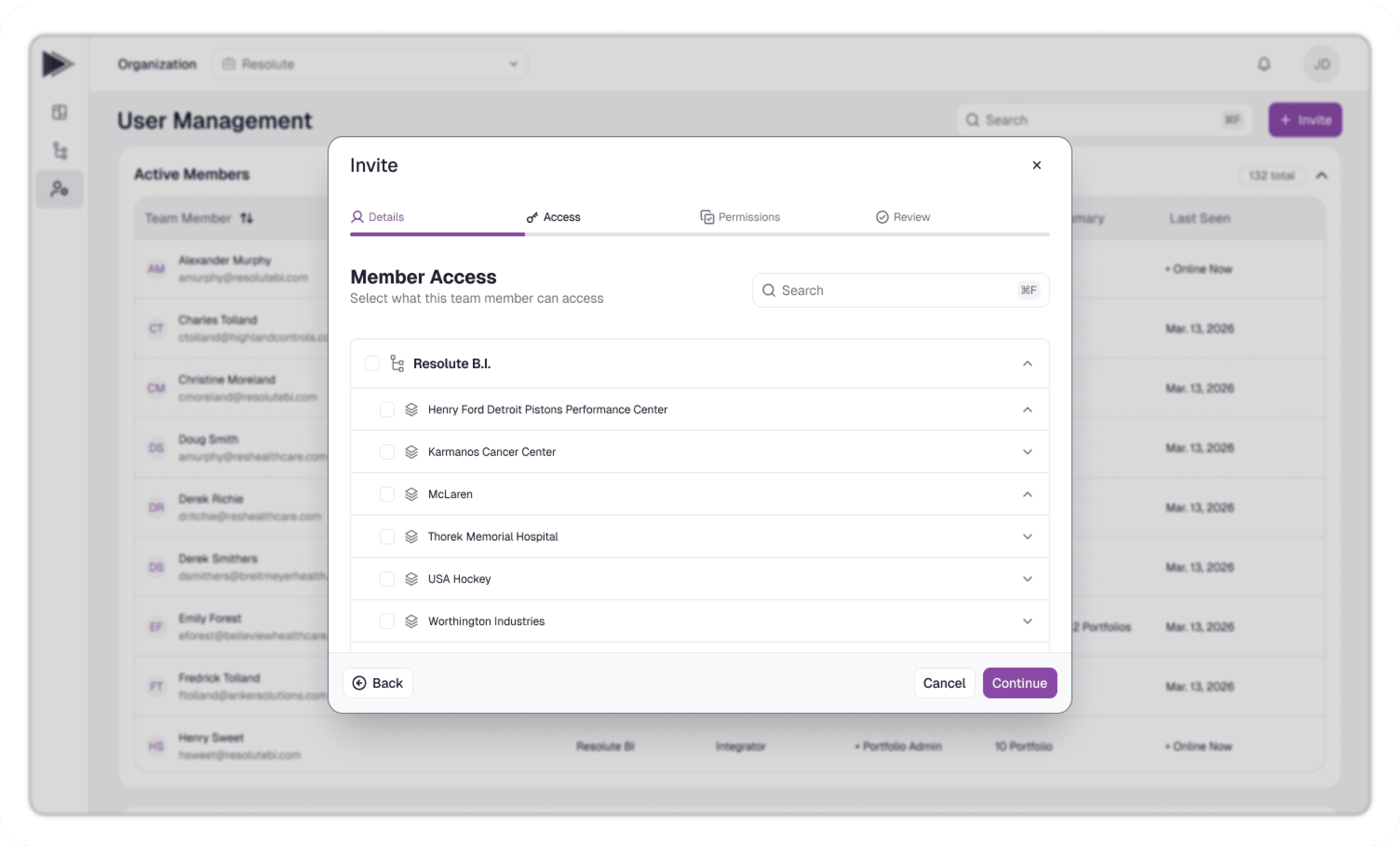
Access Assignment
Define where the user should have access (Organization, Portfolio, or Site).
Permissions & Filters
Configure role-based permissions and feature access within the selected scope.
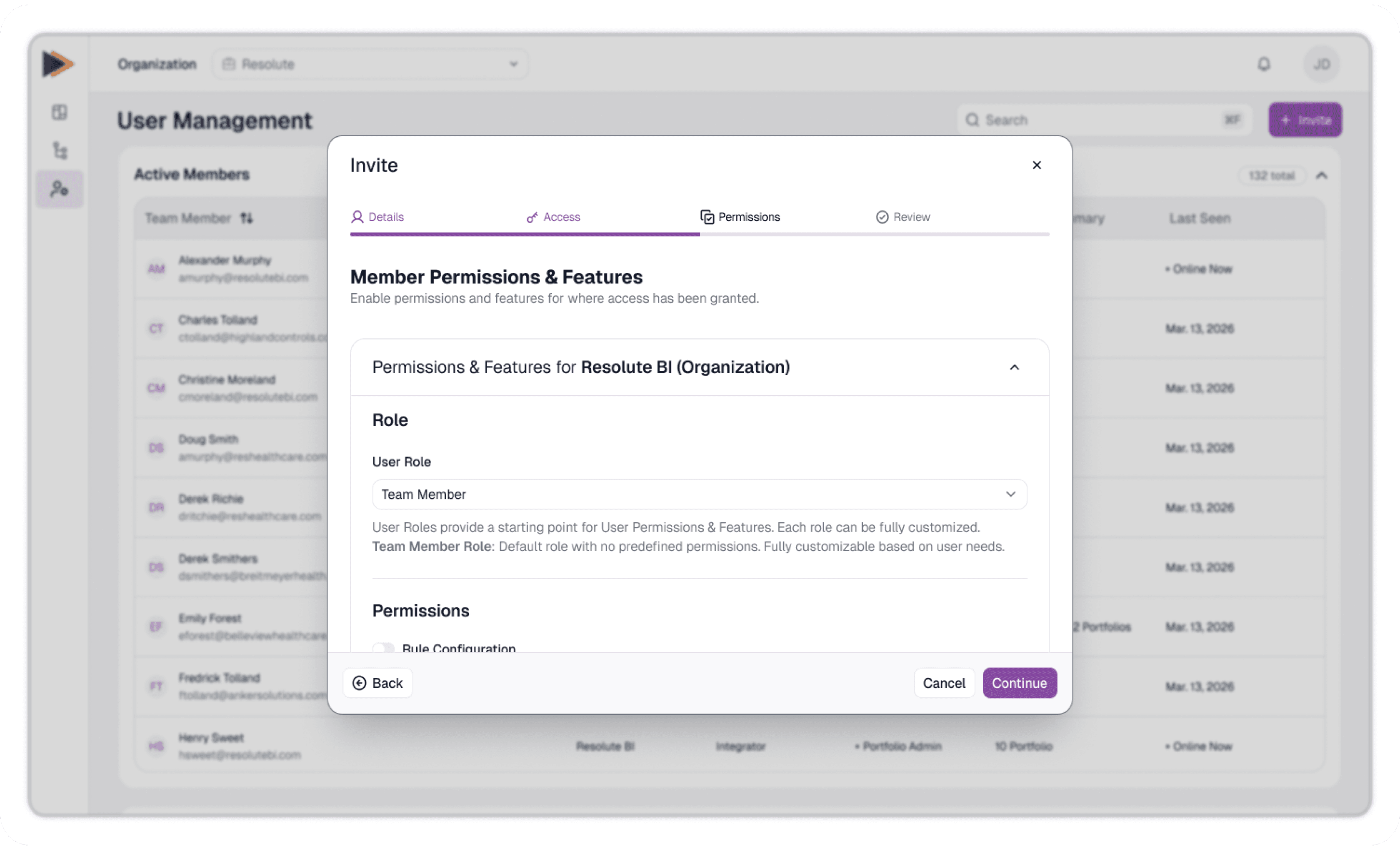
Review & Confirm
Validate all selections before sending the invite.
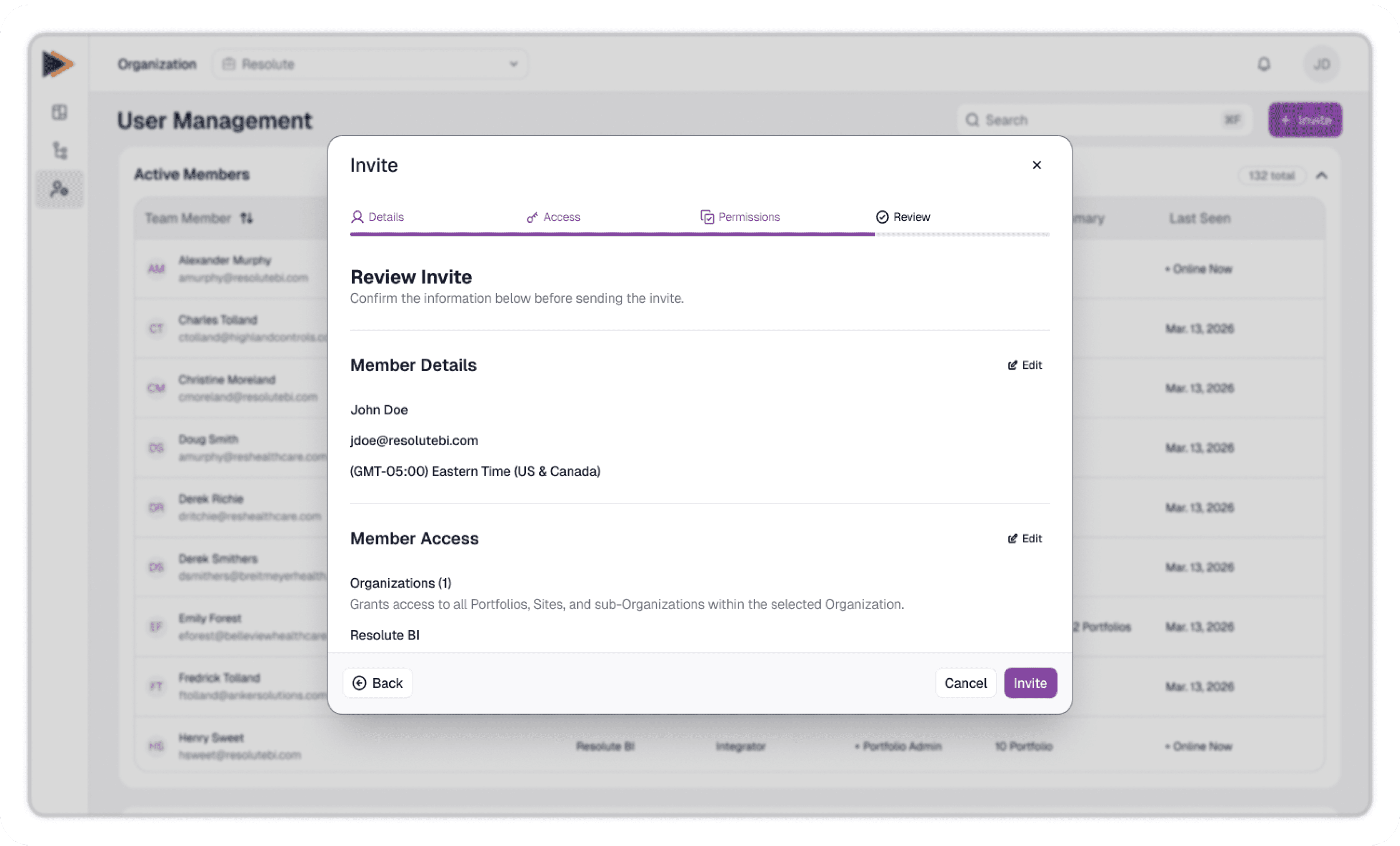
Key Design Decisions
Guided Configuration
Breaking the process into steps reduces cognitive load and keeps the flow predictable.
Access is Defined First
Access scope is established before roles and permissions.
This ensures:
Only relevant roles are available
Permissions and features are limited to the selected scope
Invalid configurations are prevented
Error Prevention
The system helps prevent common issues, such as:
Missing access assignments
Duplicate or conflicting access
Invalid permission configurations
Errors are surfaced within the flow so they can be resolved before continuing.
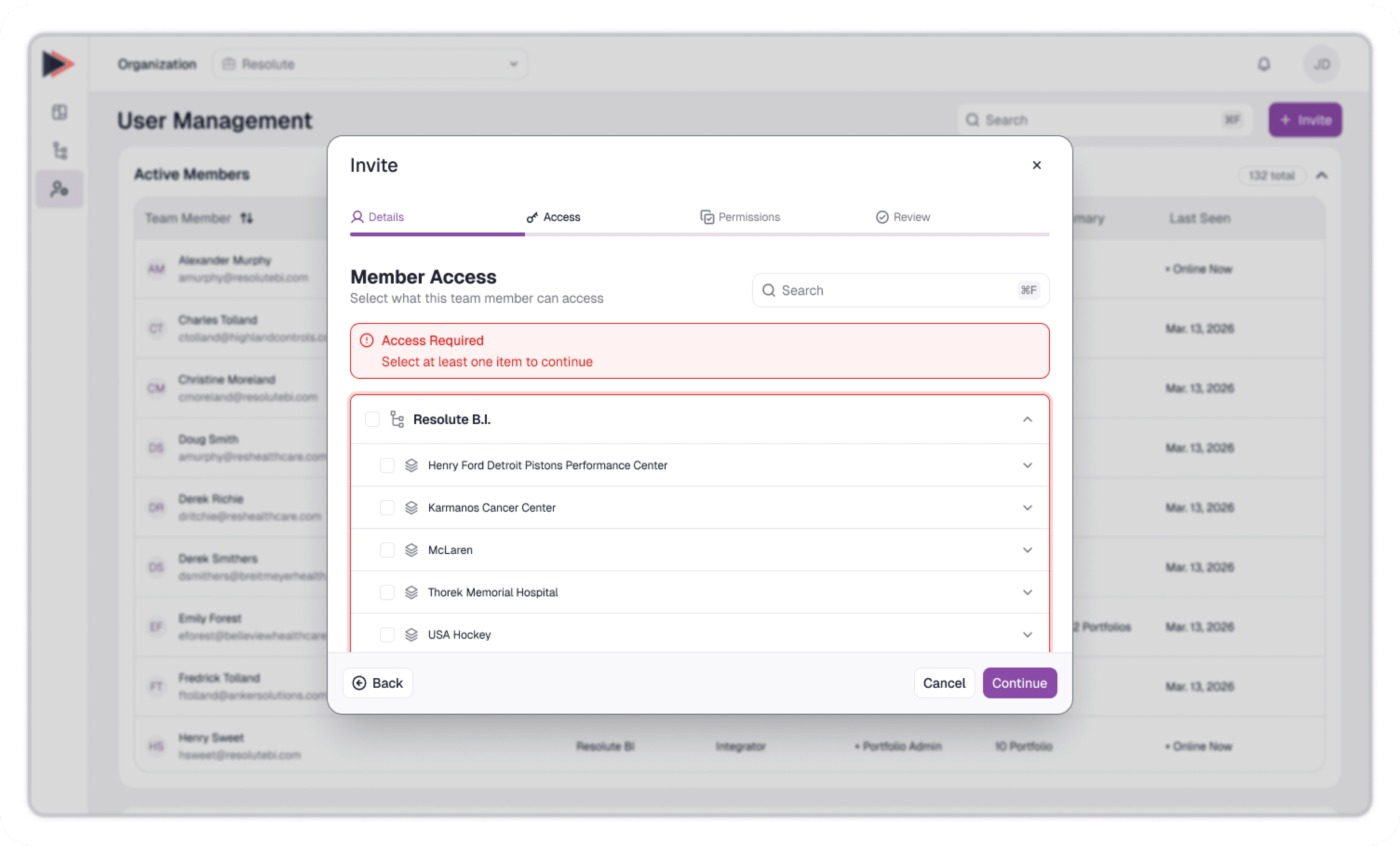
Example of an error state
Flexible for Complex Access
Multiple access items can be assigned within a single invite, allowing efficient setup without repeating the process.
Design Implications
This approach resulted in:
A more intuitive onboarding process
Fewer configuration errors
Better support for complex access scenarios
A system that scales for both simple and advanced use cases
Editing & Reinviting Users
Administrators can update user details, access, and permissions directly from the user management table.
These workflows support ongoing user management beyond the initial invite.
Editing Users
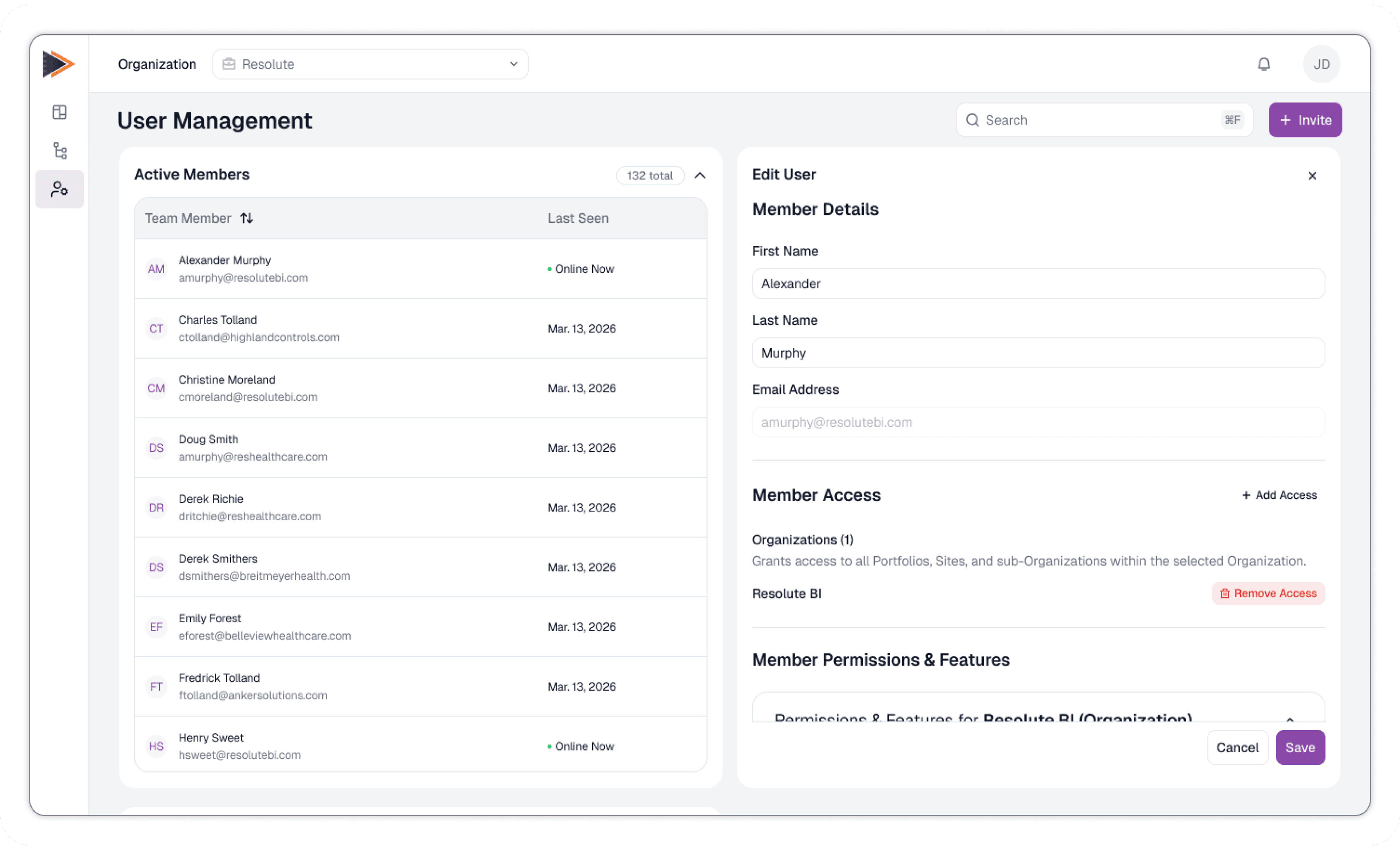
Example of the Edit User panel
Users are edited through a persistent side panel that appears alongside the table.
This allows administrators to:
Maintain context while editing
Scroll and select other users
Make repeated updates efficiently
Reinviting Users
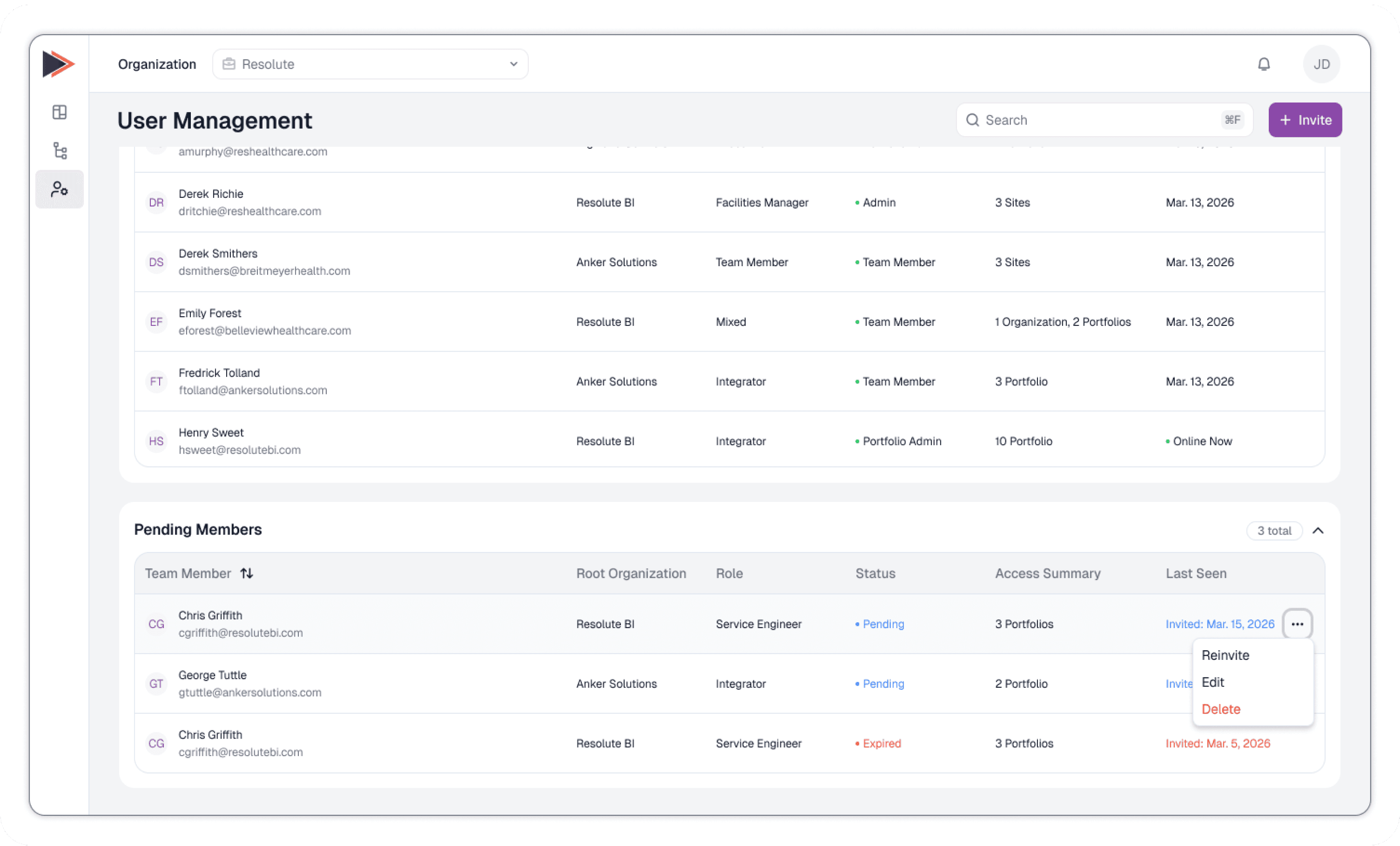
Example showing the Reinvite option in the actions menu
Users with pending or expired invites can be reinvited in two ways:
Quick Reinvite from the table
Edit and Reinvite after making updates
Key Design Decisions
Persistent editing pattern
The split view layout keeps the table visible while editing, supporting multi-user workflows.
Flexible reinvite options
Supports both quick actions and more detailed updates.
Clear status feedback
User status is always visible, helping administrators understand when action is needed.
Design Implications
This approach resulted in:
Faster updates to user access and permissions
Reduced friction when managing pending or expired users
A consistent and predictable editing experience
Better support for ongoing user management beyond initial onboarding
Expected Impact
While this work was completed prior to development and release, the redesigned user management system was built to address key limitations in the existing experience and support the long-term unification of the platform.
Key Improvements
Centralized User Management
Consolidates users across applications into a single interface, reducing fragmentation and improving visibility.
Scalable Permission Model
Introduces a flexible system of roles, permissions, and access scope that can adapt to different user types and organizational structures.
Reduced Configuration Errors
A structured invite flow ensures access, roles, and permissions are assigned in a valid and predictable way.
Improved Usability
Clear separation between user-controlled settings and administrative actions simplifies the overall experience.
Efficient Workflows
Persistent editing patterns and flexible reinvite options support real-world user management tasks.
Reflection
This project focused on defining a scalable foundation for user management within a unified platform.
By aligning roles, permissions, and access with how the system is structured, the experience becomes more predictable, easier to manage, and better suited for growth.
Keith Murphy
Product Designer
2026
Contact
Email: kmurphy@themurphyfiles.com
Phone: (248) 878-5538
Social